
How to make some parts colored with rest in Black & White
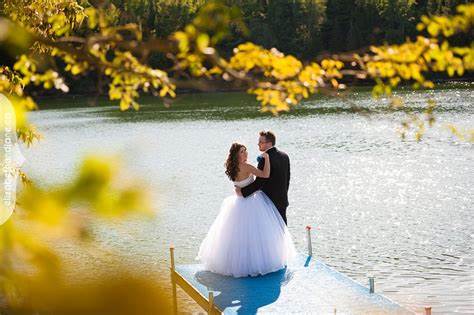
This Tutorial helps you learn how to make some objects of the image colored while rest Black and White after the colored photo has been converted into black and white.
Step 1: First open the picture in which you want to have some objects of the image colored while the rest black and white.

Step 2: Select Channel Mixer option in the Layer Menu.

This makes a new layer for Channel Mixer which is shown in layer palette.

Step 3: In the Channel Mixer Dialog box click on the monochrome option to convert the picture into black and white.


Step 4: Now select the brush tool as shown in the figure below. Make sure that the foreground color and background color are set to black and white respectively.

Step 5: Now select the brush size.

Step 6: Using the brush highlight all the objects you want colored. Select the appropriate brush size for small details.(Do as shown below)

Here is the final image.
![]()


September 21st, 2008 at 10:29 pm
Thats really quick and easy
September 22nd, 2008 at 1:50 am
I always wondered how to do it but I’ve never looked into it, thankfully you had it on the front page and I saw it =)
September 24th, 2008 at 11:23 am
[...] 10 Awesome and inspiring web design blogs - 3 » How to make some parts colored with rest in Black & White - 2 » Hello world! - 1 » How to create a Crystal Ball effect in photograph using [...]
October 18th, 2008 at 10:04 pm
that’s cool ^_^
November 16th, 2008 at 10:51 pm
cool! you make it so easy…. keep up and looking forward for more tutorials
November 17th, 2008 at 5:02 am
when I paint with brush, all remains black, not colored. Where am I wrong?
November 17th, 2008 at 10:55 pm
Wouldn’t making the picture black-and-white and then use history brush be much easier?
November 23rd, 2008 at 6:28 am
which photoshop you using? Im using adobe photoshop elements 6.0 and i dont have those layers you describe in step 2
November 23rd, 2008 at 6:37 am
@Razael: Oh! but mine is done in photoshop cs3
November 23rd, 2008 at 1:54 pm
Much easier than the way I’ve been doing it in the past.
Thanks!
November 24th, 2008 at 12:22 am
OMG, i love this tut, its so easy and very well explained! thank you soooo much :*
November 24th, 2008 at 6:38 am
@ Navendra: Is there a way that you could do it on Elements 6.0? Do you know how?
November 25th, 2008 at 5:58 pm
Superb! Quick, easy, clear and effective. Thank you.
December 16th, 2008 at 5:37 am
ok i knw this sounds weird, but I can’t find the channel mixer thing on my computer…can someone plz help?
December 22nd, 2008 at 9:22 am
[...] More Photo Effect Resources: How to make a picture look like frosted glass using photoshop How to blend two Layers to make one single photograph using photoshop How to create a Crystal Ball effect in photograph using Photoshop How to make some parts colored with rest in Black & White [...]